
Actuals
Bring real enrollment and inventory from your IRT/RTSM into Prognosis so the forecast plans from what has actually happened.
Overview
The setup steps describe the plan. Actuals (IRT/RTSM) records what has actually happened in your trial: patients enrolled and dispensed, and the kits on hand in your supply network. Open it from the trial's left navigation, directly below Study Design.
Once a trial has started enrolling (today is on or after the first patient first visit), the forecast uses your actuals for the past and plans only the remaining enrollment and visits, so a running trial is never double-counted. Actuals informs the forecast independently of setup completion, so you can keep it current throughout the trial.
Actuals has a tab for each kind of data:
| Tab | What it holds |
|---|---|
| Recruitment | Actual enrollment by country and treatment arm (and cohort or dose level where they apply) |
| Depot Inventory | Kit inventory on hand at each depot, by kit, label group, lot and expiry |
Each tab has its own switch. Turn on the data you track. Turning a tab off after entering data deletes that tab's data, and a confirmation dialog warns you first.
How the Forecast Uses Your Actuals
Before the first patient first visit, the forecast plans the whole trial from your setup. Once enrollment has started, it switches to your actuals:
- Enrollment to date comes from Recruitment actuals. The forecast plans only the patients still to enroll, over the rest of each country's enrollment window, so a running trial is never double-counted. Actuals may exceed plan or fall after a country's last patient in date, whether imported or entered by hand; Prognosis keeps every actual patient, plans more patients only where an arm or cohort in that country is still below plan, and spreads country-level actuals across treatment arms by their allocation.
- The Dispensing export says which arm, cohort and dose level each patient is on. On a titrated arm, a patient's remaining visits follow the titration from the dose level of their latest dispensing, not from the starting dose. Visits before today are not planned again.
- Starting stock comes from Depot Inventory. Kits on hand are available from today. Kits in transit to a local depot count from today plus the depot's inbound lead time. Kits in transit to a central depot are not used until you record them as on hand. An expired lot is not used. If no stock is recorded, the forecast assumes there is none until the next lot arrives, which can show patient risk that your real stock already covers.
Update your actuals, then open the Analytics Dashboard to see the forecast built on them.
Ways to Get Your IRT Data Into Prognosis
There are two ways to bring IRT/RTSM data in. Both land in the same Actuals tabs and feed the forecast the same way.
Automated IRT/RTSM Integration
To have your IRT/RTSM data reach Prognosis automatically, on a schedule and without manual uploads, contact the Prognosis support team. They set up the integration for your workspace.
Import From IRT (Manual Upload)
You can upload exports yourself at any time with Import from IRT on the Actuals page. Exports follow the Prognosis data transfer specification: a template for each dataset, in CSV or XML. Column Mapping absorbs small differences in your report's layout, and IRT Data Mapping translates your IRT's names into the names used in this trial.
Importing Actuals From Your IRT
- Map your IRT values. Open IRT Data Mapping on the Actuals page and connect your IRT's names (arms, kits, depots and so on) to this trial's. It lists the arms, kits and depots from this trial's setup, and saves as you connect each value. You can do this once, up front, or when an import asks for it. See IRT Data Mapping below.
- Download the templates. Choose Import from IRT to open the import panel. Under "Download templates and upload exports", download the Recruitment, Dispensing and Depot Inventory templates as CSV or XML. Share them with your IRT/RTSM vendor, or use them to shape your own exports.
- Upload complete exports. Drop one or more complete exports into the panel. Upload Recruitment and Dispensing together, from the same snapshot. Depot Inventory can be uploaded alone or with them.
- Map the columns if needed. Step 2 of the panel, Column Mapping, is optional. Skip it when your export uses the template's column headers. If your report names a column differently ("Site Number" instead of the template's site column, for example), connect it here once, and later exports of the same report load without renaming.
- Review and import. Prognosis validates every row against this trial and shows the combined changes per dataset. Choose Import Actuals to apply them. Each imported dataset replaces its previous snapshot.
What Prognosis Reads for You
- Common date formats, ISO alpha-3 country codes and full country names
- Reports that give one quantity column per inventory status, through Column Mapping
- The export time from a dated file name when the export leaves it blank
- The study from the trial you opened: records are always filed under that trial
- A patient dispensed before the IRT records their enrollment: when the enrollment date is blank, the first dispensing date is used in its place, and the review lists the patients it applies to
- Site Inventory availability checked for each lot at a site: the quantities of the statuses mapped to Available must add up to the lot's available quantity, which the export repeats on every status row. When they do not, Prognosis uses their sum, and the review names the site, the lot and both numbers
Upload Limits
A manual upload accepts files up to 25 MB and up to 100,000 records per export. Each dataset (Recruitment, Depot Inventory and Site Inventory) holds up to 25,000 rows of its own, so a large study's exports are imported whole. Prognosis applies an import in the background once you confirm it: the button shows the upload, then the import being applied, and Actuals refresh when it is done. If an import is still being applied when the page stops waiting or is reloaded, Actuals stay read-only until it finishes, so nothing you change is overwritten, and the page then loads the imported Actuals. Do not split a complete export to fit a limit: contact Prognosis support to arrange an automated transfer instead.
Column Mapping
Column Mapping tells Prognosis which column in your report holds each field in the template. You only need it when a report's column headers differ from the template's.
- Open it from step 2 of the Import from IRT panel.
- Connect each of your report's columns to the template field it holds. Suggest from column names fills in likely matches for you to check.
- Choose Save mapping to save and return to the import. Mappings are remembered, so later exports of the same report load without renaming.
- A report that spreads quantities across status columns (one column for available kits, another for quarantined, and so on) can be mapped here too.
IRT Data Mapping
Your IRT and Prognosis often use different names for the same thing. One example is "Arm A - 10mg" in the IRT and "Treatment A" in this trial. IRT Data Mapping connects each IRT value to its Prognosis counterpart so imports land on the right arm, kit or depot.
What You Map
| Group | Values |
|---|---|
| Treatment | Treatment arms, cohorts and dose levels, each on its own or in a combination |
| Recruitment | Patient statuses (visit mapping is not supported yet and never blocks an import) |
| Inventory | Label groups, unblinded kit descriptions and inventory statuses |
| Locations | Depots |
Treatment Mapping
Every patient in the Dispensing export needs a treatment arm. The import stops on a dispensing row whose arm is blank, whose IRT arm connects to no Prognosis arm, or whose IRT arm you chose to ignore, and names the patient. A patient in the Recruitment export who has not been dispensed yet loads without an arm and is split across arms by their allocation.
- One connection per Prognosis value. Each arm, cohort or dose level takes one connection: a single IRT value of the same field, or a combination that includes that field. For example, the IRT arm TAMOXIFEN to the Tamoxifen arm, or the IRT arm SoC together with the dose level LETROZOLE to the Letrozole arm. Turn on Map across treatment fields in the Treatment group to build a combination.
- The arm comes from the IRT arm. A dose level or cohort on its own cannot be connected to an arm. A connection saved that way earlier is marked on the Treatment card and is not used on import.
- Each patient's dose level is the one on their latest dispensing. The forecast follows their remaining visits through the titration from that level. A patient on a titrated arm with no dose level in the export starts at the starting dose, and the review lists them.
Mapping File
A mapping file lists every value your IRT can emit for each field, so you can map them all before the first import. Exact matches are connected automatically when the file loads. Without a mapping file, mapping happens as new values appear in your transfer files.
Smart Map
Smart Map suggests connections for unmapped values. Review the suggestions, then accept all, dismiss them, or undo. Run it again whenever new values arrive.
Unmapped Values
The IRT Data Mapping button shows a badge with the number of IRT values that still need mapping before an import. Visit names are excluded, because they never affect an import. When an import finds values it cannot place, it asks you to connect them first. Your selected files stay loaded, and they are checked again when you choose Back to import. Opened on its own, the screen's button reads Back to Actuals.
Entering Actuals by Hand
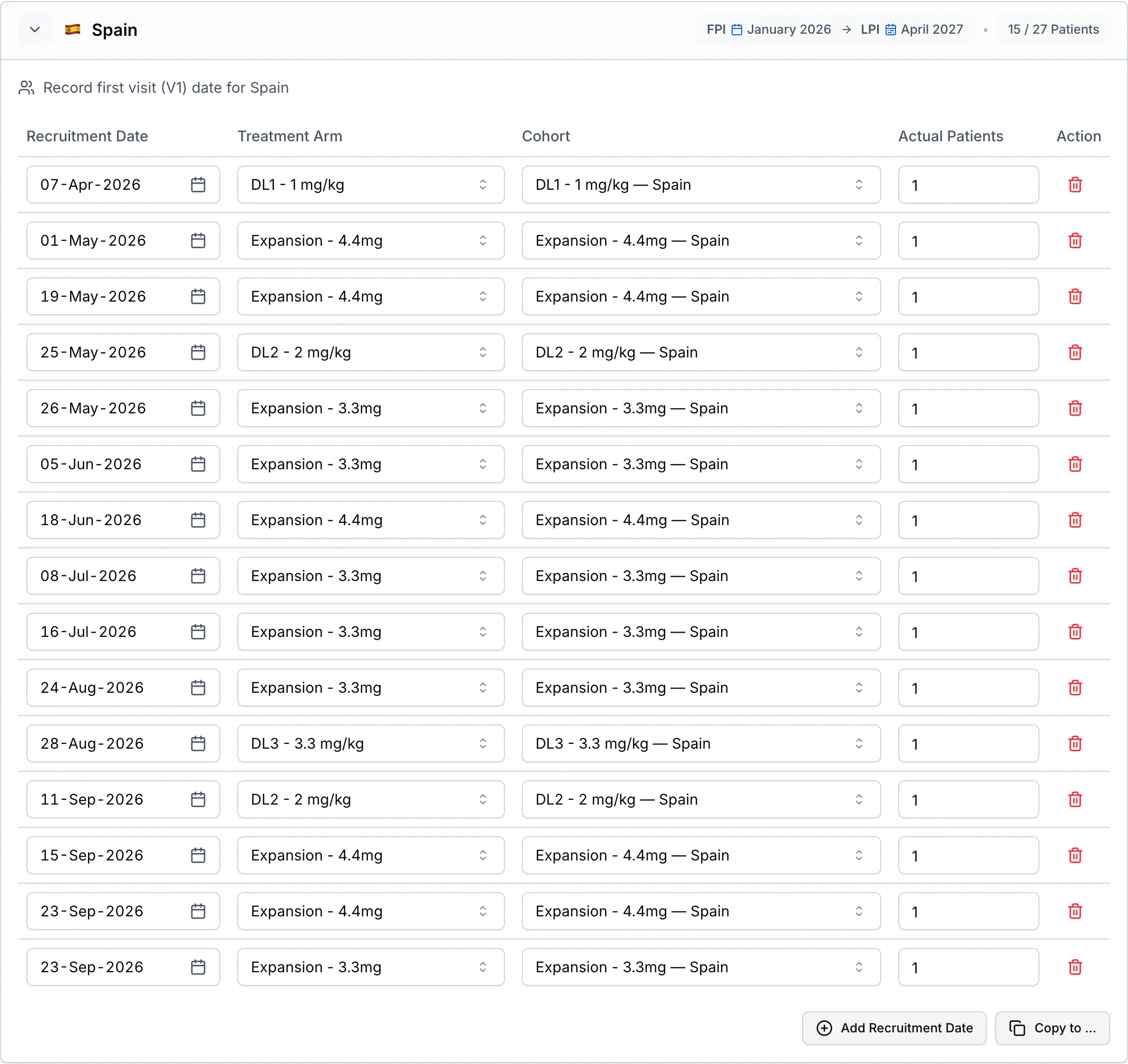
You can also enter or correct actuals directly on each tab instead of importing them: on the Recruitment tab, add a row for each enrollment date with Add Recruitment Date; on the Depot Inventory tab, add stock with Add Item to the depot. Entries save automatically as you type. These are actual figures: planned enrollment stays in the Recruitment setup step.
Recruitment
If you prefer not to import, type your enrollment numbers in directly. Each country in the trial has its own section. Add a row with Add Recruitment Date and enter:
| Field | Required | Description |
|---|---|---|
| Recruitment Date | Yes | The date patients were enrolled. Must be on or after the country's first patient in date |
| Treatment Arm | Yes | The arm the patients were randomized to |
| Cohort | No | The cohort, when the trial uses cohorts |
| Actual Patients | Yes | How many patients were enrolled (at least 1) |
Recruitment entered by hand may exceed a country's planned patient count, just as an import may. Prognosis keeps every actual patient and plans more patients only where an arm or cohort in that country is still below plan. A country over plan shows its count in amber, for example 23 / 14 Patients, and nothing blocks Save & Open Analytics. A row dated after the country's last patient in date is accepted and marked After Last Patient In, as an import notes it.
Depot Inventory
Each depot in the trial has its own section. Add a row with Add Item to the depot and enter:
| Field | Required | Description |
|---|---|---|
| Lot Number | No | The manufacturing lot identifier |
| Kit | Yes | The kit type |
| Label Group | No | The label group, or No label group. For a pooled kit at one of its supply pool's central depots, Pooled / Unlabelled marks the pool's shared stock, listed once for every trial in the pool |
| Country Approvals | No | The countries this stock is approved for, within its label group. With none, it can serve every country the label group reaches, or every country when it has No label group |
| Quantity | Yes | Kits on hand. May be 0 when the stock is still in transit |
| In Transit | No | Kits on their way to this depot. A row needs stock on hand or in transit |
| Expiry Date | Yes | The kit expiry date. A past date is still recorded and marked Expired lot; the forecast does not use that stock |
Copying Between Countries or Depots
Use Copy to ... on a country with data, or the copy icon on a depot, choose the targets, and confirm. Copying replaces the data already in the targets.
Site Inventory
When Site Shipments is on for the trial, a third tab, Site Inventory, records kit inventory at individual clinical sites. Its template appears in the Import from IRT panel alongside the others, and it can be uploaded alone or with the other datasets. IRT Data Mapping then also lists Sites under Locations, so your IRT site identifiers connect to this trial's sites.
Opening Analytics
When your actuals are up to date, choose Save & Open Analytics. If an entry needs attention, the button explains what to fix first. Analytics then shows the forecast built on your actuals: demand, production, inventory and risk all reflect what has really happened so far.
Tips
- Keep actuals current. Import or update actuals on a regular rhythm (weekly or monthly) so the forecast tracks reality and supply issues show up early.
- Map once, up front. Loading a mapping file before the first import saves interruptions later.
- Upload complete exports. Each import replaces the previous snapshot of that dataset, so always send the whole dataset, not just new rows.
- Ask for an integration when volumes grow. If manual uploads become routine or exceed the upload limit, contact Prognosis support to set up an automated IRT/RTSM integration.